Showing posts with label MoBi CorNeR. Show all posts

Wednesday, 19 September 2012

Tricks With Android 4.o Ice Cream Sandwich...;)

Tricks With Android 4.o Ice Cream Sandwich...;)


Google's latest version of its Android software takes it up to version 4.0 and higher, which is commonly known as the Ice Cream Sandwich update of the mobile OS.

The big selling point is that it unifies the experience across all hardware, so users of phones running ICS see largely the same interface, albeit with some layout changes for the bigger screened devices.

Of course, there's still the issue of manufacturer skins to take into account. While Android 4.0 offers a basic and seriously updated feature set, some tools and features may be missing or accessed through different means when using the same OS on phones made by different companies.

So Samsung's Android 4.0 update, which we're seeing arrive on its Galaxy S II right now, looks and works differently to the Android 4.0 you'll shortly see arriving on HTC's exciting new One Series of phones.

Which makes compiling a list of tips that work on all versions of the OS out there rather hard. But enough of our moaning. Here are a few useful shortcuts to getting the most out of your Ice Cream Sandwich serving, whenever the metaphorical waitress decides to bring it to your metaphorical table. 


1. Add quick controls to the browser.
One of the options buried beneath the Labs section of Android 4.0's web browser is the Quick Controls option. This adds a pop-out menu to the browser, which pulls in a little semi-circular collection of shortcuts to the main browser features, removing the URL bar and giving you more screen to play with. Also, holding down the Back button is the Android standard way of bringing up the bookmarks and history tool, too. But that's been around for years.
Quick controls

2. Long-press to uninstall

Long-pressing on an app within the app drawer lets you drag it to a Home screen, but it also pops up a couple of menus along the top of the screen. App Info gives you the boring technical stuff about how much memory it's taking up, or you can fling it off the other way to uninstall it.

3. Flying Android screensaver

One odd undocumented little secret within Android 4.0 is this strange little collection of flying Androids, which you can... look at. Look at for as long as you like. To activate it, head into the phone's About screen and hammer away at the Android Version tab and it'll all happen.
Flying Androids

4. Save your eyes with inverted rendering

Inverted rendering is a posh way of saying it makes the pages black and turns the text white, so it looks like you're reading the internet from 1997. It also supposedly saves battery, plus is easier on the eyes if you're reading in the dark. It's under the browser's settings tab, within the accessibility area - and there's a contrast slider, too.
Inverted rendering

5. Set a custom rejection text message

When your Twitter action is rudely interrupted by someone actually telephoning you, there's a polite way to give the caller the boot. Android 4.0 lets users ping a rejection text message to callers - and you're able to customise this too. Just answer a call and ping the lock screen notification up to access to custom rejection messaging area.

6. Stop app icons automatically appearing

One of the many new ICS features is the way Google lets apps automatically add shortcuts to themselves on your Home screen when they've finished installing. It's useful, but if you're a control freak and wish to remain 100% in charge of your Home layout, head to the Google Play app's settings tab and untick the Auto-add Shortcuts toggle.
Home Screen

7. There's a Settings shortcut in the Notifications pane

That little settings icon in the ICS notifications area isn't just art to fill the space. It's a shortcut to your phone or tablet's settings area. So use that instead of giving it a Home screen icon slot all to itself.

8. Manually close apps

Google's lovely new recent apps multitasking menu also lets you close apps quickly, should you suspect one's gone rogue. A Long-press within the Recent Apps listing lets you visit the app's info page, from where you can easily force close it.
Multitasking

9. Remove the lock screen

It's possible to entirely bin your Android 4.0 lock screen, making the phone instantly turn itself on when you press the power button. It's a security nightmare, but if your phone lives entirely on your desk and you demand instant access without any unlocking, head to Security > Screen lock and select none. Then be very careful.

10. Folders in the dock

Android's new official love of folder formation makes it dead easy to combine app shortcuts and make folders, simply by dragging one icon on top of another. You can make these groups of apps even easier to access by dragging a folder onto the ICS floating dock, meaning you can squeeze stacks more content on to each creaking Home screen.
Dock


11. Take photos while recording video

The Android 4.0 camera app that arrived with the Galaxy Nexus has one cool little extra feature - the ability to fire off still photos while recording video clips. Simply tapping the screen takes a shot at full resolution, which is saved to the phone's gallery while the video's still happily recording away.
Video


12. Bin animations and transitions

Hidden within the Developer Options section of the Ice Cream Sandwich software are quite a few nerdy ways to adapt your phone. Most won't be of any use to those who are just using their phone as a phone, but if you want it to feel faster, or at least look a little different, the scrolling, zooming effects on windows and menus can be edited in many ways.

13. Take a grab of your phone

Screen grabbing of your phone's display is finally in Android. On the Galaxy Nexus, it's activated through holding the power button and volume down switch. On HTC's new models it's done by holding the power button and pressing Home. Other phones had different techniques for doing this before Ice Cream Sandwich, but it's good to see this now becoming part of the standard Android feature set in Android 4.0.
Screenshot


14. Long-press dotted words

When typing on the Android 4.0 keyboard, you may see some suggested words appear with the "..." icon beneath. Doing a long-press on this one will pop up a much bigger window of suggested words, letting you bail out on some of that tedious typing a little quicker.

15. Add additional faces

The ICS face unlock feature, as found in the Galaxy Nexus, lets you unlock it by scanning your face with the front camera. Which is great, but what if you haven't shaved for a month? The software can actually store multiple images of your face, so you can do left parting, right parting, shaved, unshaved - or even add a trusted a friend to the visually verified user list.
Face unlock

16. Experiment with GPU settings

Another hidden little gem found within the Development options tab is the hardware acceleration 'Force On' toggle. This makes ICS attempt to boost the performance of any apps that don't already use the feature. It may also break them in the process, though, so it's something of a trial and error fiddling exercise to do on a very rainy day.

17. Type like an adult

Make a stand for grammatical standards in this day and age by long-pressing on the stock Android 4.0 keyboard's full stop button. This brings up such doomed punctuation as commas and speech marks, plus even a semicolon for the extra brave mobile typist.
Adult typing


18. Nick wallpapers off the internet

Found a lovely photograph of some stars, a pretty computer generated planet or even the mighty Professor Brian Cox himself? Long-pressing on any image in the web browsers lets you instantly set it as your wallpaper, without the hassle of saving it, finding it, and setting it the long way.

19. Limit background process

If you fancy an even more serious bit of fiddling, the same ICS developer area contains the option to "limit background process" demands by the OS. You can use this to stop your phone or tablet storing so many apps in memory. Whether this has any effect of the actual battery life of us users is up for debate, but again, it's something to play with and see if it suits your phone use patterns.

20. Quickly access Notifications

Here's a simple yet huge change Google's made in Android 4.0 - the Notifications pane can be accessed from the lock screen. Press power, touch the Notifications area, then scroll down to read your latest messages. Obviously it's a bit of a security risk and lets anyone access your messages, so best be careful.
HoPE U Guyz GonE Through What You ShOuld Know..;)

Tuesday, 18 September 2012

How To Install And Run Android 4.0 On Mac, Windows PC Or Linux [Tutorial]

How To Install And Run Android 4.0 On Mac, Windows PC Or Linux [Tutorial]...;)


The mobile smartphone and tablet industry seems to have a very prominent divide, with a lot of consumers having their favorite operating system and choosing to stick to hardware which is powered by their chosen OS. Obviously fans of Apple’s iOS use the iPhone and iPad devices, whereas Android lovers have a wide range of hardware to choose from due to the fact that the OS is available to multiple manufacturers.

But what happens if you are a die hard fan of iOS, or Windows Phone but you still want to sample the delights that Android Ice Cream Sandwich has to offer? I personally am an Android User for the last three years and will continue to be for the foreseeable future. But after recently getting my first taste of Android, I am severely tempted to shell out for a second device so I can have the benefits that both provide. For those that can’t, or won’t, purchase a second device then why not run Android 4.0 in virtualization on your desktop or laptop in order to see the Ice Cream Sandwich experience first hand?


Android 4.0 is an operating system in its own right, but instead of running on a dual boot setup, we install and run ICS within a free of charge virtualization application known as VirtualBox. VirtualBox runs like any other application or program on your machine, but offers the benefits of being able to install a secondary OS within it which can be invoked quickly by the user. For all those die hard iOS and Windows Phone fans out there, this is a perfect way to experience the delights of Android.

Are you ready for a whirlwind journey down Ice Cream Sandwich lane? Buckle in and follow the simple steps below.

Step 1: Head over to the official Oracle VM VirtualBox site and download the relevant VirtualBox binary for your computers operating system (Windows/Mac OS X/Linux/Solaris).


Step 2: Find the saved location of the downloaded VirtualBox binary and install as you would with any other native application making sure to follow all on screen prompts and instructions.

Step 3: Head on over to the VMLite website and download a copy of the Ice Cream Sandwich which has been preconfigured for virtualization and features seamless mouse support for navigation. The download weighs in at 88MB in size so may take a while to download depending on your connection.


Step 4: Locate the downloaded ‘Android-v4.7z‘ file and extract the contents from within.

Step 5: Once the Android-v4.7z file has been opened, locate a file from within the archive called ‘Android-v4.vbox‘ which as you can tell by the file extension is a pre configured VirtualBox file.
Step 6: Double click on the Android-v4.vbox file which will load the VirtualBox application and boot up the ICS file.
Step 7: When the boot menu is presented in VirtualBox, press ‘start‘ on the top toolbar and then if required select the ‘Android Startup from /dev/sda‘ option.


Step 8: All steps are complete. Android 4.0 ICS should now be booting up allowing you to enjoy that Android goodness.

Friday, 14 September 2012

iPad Mini to be Launched in October


iPad Mini to be Launched in October


According to Official Sources iPad Mini is all set be launched this October.It will not be launched on Spetember 12 aong with the iPhone 5.

iPad Mini is rumoured to look larger than iPod Touch.
We will have to wait and watch if iPad Mini actually eats into Apple’s own space by competing against iPad and iPhone.

Nokia Lumia 920 Launching this October


Nokia Lumia 920 Launching this October


Nokia Lumia 920 the Windows 8 Phone from Nokia is all set to be launched during late september or Early October.It would be arriving in India after a few weeks from that.


New Reports have confirmed the specifications.Lumia 920 will have a 8-megapixel camera and wireless charging capabilities using the Qi wireless standard.have 32GB of onboard storage and will have a 4.5-inch HD display alongside a 1.5GHz dual-core processor, 1GB of RAM and a 1.3-megapixel front facing camera.


iPhone 5 Launched


iPhone 5 Launched


The Most awaited Launch of the Year has finally arrived and Apple has launched the iPhone 5.


Design:It comes in an all glass front and an aluminum back casing in black and white. The iPhone 5 is a mere 7.6 mm thin and is lighter than the iPhone 4S.

Display: It also has a bigger 4-inch display with a 1136×640 pixel resolution giving it a pixel density of 326 pixels per inch. Hence it is now a 16:9 aspect ratio, which is the first time Apple has implemented on any iOS device.

Processor: The iPhone 5 has a new A6 chipset rather than the A5X it used in the new iPad. Apple claims its CPU and GPU are twice as fast as the iPhone 4S

Connectivity: The iPhone 5 will have LTE connectivity but won’t be compatible with 4G LTE networks that are coming up in India. It also does have HSPA+ and dual carrier HSDPA along with dual-band Wi-Fi 802.11n.

Battery: Apple claims that the iPhone 5 can do 8 hours of talking or web browsing over 3G, 10 hours of web browsing over Wi-Fi, 10 hours of videos, 40 hours of music or 225 hours of standby.

Camera: The camera stays at 8 megapixel but it has backside illumination, a f/2.4 aperture, sapphire crystal and a dynamic low light mode. Apple has also added a panorama mode, the ability to click photographs while recording video and some interesting editing features. It remains to be seen how it compares to the Nokia Lumia 920, which we tend to believe has a better camera.


Connector: Apple has introduced a new 8-pin connector it calls Lightning.


The Bottom Line Remains that iPhone 5 is Lighter and Powerful than the 4S but the lack of wireless charging and NFC is bit of a disappointment.

Update Your Motorola Defy XT To Android 4.0 Ice Cream Sandwich Chinese Version

Update Your Motorola Defy XT To Android  4.0 Ice Cream Sandwich Chinese Version


Now Motorola DEfy Can Be Upgraded to Android 4.0.4...itz Official....;)


Follow these procedures...:::::


1.Download the android 4.0.4 sbf file From HERE

2. Switch off your mobile then press and hold down the volume up and volume down with power key. Now your Device
 will go in to recovery mode

3. Do a factory reset/ wipe data

4. Clear the cache

5. Power off again

6. Then go to bootloader mode by holding volume up and power key.

7. Connect your mobile with pc via data cable and open motorola RSD LITE
 (prefer latest version)

8. flash the sbf file with rsd lite

9. After flashing the first boot take some time, so please wait

10. The PHONE will start in chinese language

11. change it to english in the settings menu


I think you already done the above procedure


Everything is fine. The only problem is there is no google related apps like play store, gmail, g talk etc.

Right ?


then follow me


Before that you need to root your device to get the google apps

1. Download the rooting package for motorola defy xt ( the link is available in first post of this thread)

2. Install SUT LR from the package

3. The SUT LR is mostly working in 32 bit windows PC, If you have 64 bit OS then try it wiht another system

4. Connect Motorola Defy XT to PC/Laptop

5. windows will detect the device, wait until windows finish install the driver.

6. Run SUT LR1.8.2 software update tool

7. Select FXX_PR3_NV.xml in the software update tool when asking make sure the
NvDefinition.xml file should also located in the same folder

8. click Next.The device will auto reboot after driver installation and rom patching complete. remove the phone from PC/laptop

9. Boot in normal mode

10. Go to menu > Settings > Applications > Developer

11. Check USB Debugging (enable)

12. Connect the phone to PC/laptop

14. Dont root it with super one click

15. Download the below package to root

www.mediafire.com/?t884ytrvoghb9gx

16. Extract the package and open the root file

17. The device will reboot three times when the rooting process

18. After that the command window shows press any key

19. Press any key and remove your phone from the pc

20. Check if super user is installed

Now you successfully rooted your device


To install Google apps follow the procedure

1. Install root explorer (search in google for the root explorer apk)

2. download the Gapps package below

www.mediafire.com/?13xv3am4557vl92

3. extract this zip file and copy all its 21 contents to system/apps in your device with root explorer through mount r/w

4. with root explorer change the file permission for these 21 files by the following method


5. Press and hold on the file and select permissions from the pop up menu

check the boxes as shown in the image

6. Repeat the permissions for all the 21 Google apps you pasted in the systemfolder

7. Reboot your device and have fun ..EnJoy!!!!!!!


Google: Acer Can’t Work On “Non-Compatible Android” & Be Part Of Open Handset Alliance


This week, Acer abruptly pulled out of a news conference about it produce a smartphone using the Aliyun mobile operating system. Alibaba, which makes Aliyun, said Google pressured Acer to drop out. Now Google is sharing its story. Acer pulled out because by being a member of the Open Handset Alliance, it had to.


Here’s the Google statement we were sent:


Compatibility is at the heart of the Android ecosystem and ensures a consistent experience for developers, manufacturers and consumers.


Non-compatible versions of Android, like Aliyun, weaken the ecosystem. All members of the Open Handset Alliance have committed to building one Android platform and to not ship non-compatible Android devices.


This does not however, keep OHA members from participating in competing ecosystems.

The OHA & One True Android Platform

The Open Handset Alliance was created with Google’s backing in 2007, as part of the Android OS launch itself. The alliance included a wide-range of companies ranging from carriers like T-Mobile to handset-makers like Samsung.
Acer joined the OHA in 2009. In fact, there have been so few companies joining (or at least announced) recently that the news release of Acer becoming part of the OHA is still listed on the OHA’s home page:
As you can see from the home page, all OHA members are pledged to support the “Android Platform.” But when Android is open source, when Google itself is even proud to talk about how it doesn’t know all the Android products that are out there, how can Google say that Acer isn’t supporting Android?

“Compatible” Android

That’s where the whole “compatible” part comes in. You see, there are two Androids in the world, those that are deemed compatible (and have access to the Google Play app and content store) and those that aren’t.
The Samsung Galaxy S III? That’s a compatible Android device (and these devices are counted in the activation totals that Google cites, such as 500 million that it says have been activated so far).
Amazon’s Kindle Fire? That’s not compatible Android (sometimes called “forked” Android). It doesn’t have access to Google Play (which is probably fine with Amazon, since it would rather people buy content for its devices through its own app store and Amazon itself).

Acer Goes Rogue

Apparently, given the statement above, OHA members are pledged to work only on compatible Android devices. That’s where Acer comes in. It was set to announce producing a phone using Aliyun, which is a non-compatible or forked version of Android backed by Alibaba. Then it dropped out yesterday.
Alibaba posted the news on its corporate blog, saying that Google threatened to cancel Acer’s Android “license” to use Android:
A Sept. 13  news conference announcing the China launch of a high-end Acer smartphone running a cloud operating system made by Alibaba Group was abruptly canceled after Google, owner of the Android OS, threatened to cancel Acer’s license to use Android for its other phones if the launch went ahead.
I found that statement confusing. Because Android is open source, no one is “licensed” to use it. Anyone can do anything with it just as both Amazon and Alibaba have. But only products that are deemed Android compatible are allowed to use the Android logo, as well as have access to the Google Play market.
Instead, it seems likely that Acer was set to work on this new device and got a reminder from Google that doing so meant it wouldn’t be an OHA member. In turn, OHA members are (to my knowledge) able to have faster access to new versions of Android code, along with likely other perks. Acer probably decided it wasn’t worth risking all that.
We’re working to see if we can get an Acer comment. So far, the company hasn’t seemed to say much. Here what the Wall Street Journal had yesterday:
 ”Acer will continue to communicate with Google and the company still wants to launch the new smartphone based on Alibaba’s software,” the Acer official said.

OHA Members Can Work With Android Competitors, Just Not Competitors Built On Android

Going back to the Google statement, an interesting twist was this part:
This does not however, keep OHA members from participating in competing ecosystems
By saying “competing ecosystems,” Google is talking about non-Android based mobile operating systems such as iOS or Windows Phone. It’s pretty ironic. You can participate in any competing operating system you want as an OHA member unless it’s a competing system to “compatible Android” that’s based on Android source code.
If that’s making your head hurt, consider this. Yesterday, when Google came under (false) accusations that it forced Android devices to use Google search, a Google spokesperson countered that this wasn’t true, with the primary example being the Kindle Fire, which uses Bing for search.
But the Kindle Fire isn’t part of the “one Android platform” that Google’s statement talks about. It’s “non-compatible” Android, so it doesn’t count (but other compatible Android devices have and do use Bing search).

Will The Real Android Please Stand Up?

I’ve written non-compatible devices like the Nook or the Kindle Fire shouldn’t even be called Android. That feels more important than ever before. Google uses “Android” interchangeably to mean compatible devices and non-compatible ones (or the “forked” or “ASOP Android,” for Android Open Source Project, because we need yet more confusion with names).

Android = Google

Ideally, I’d like to see Google simply call compatible Android either “Google Android” or “Google OS,” because it really is all about Google.
When the name of Android Market changed to Google Play earlier this year, that solidified compatible Android as effectively being a Google OS, not an open operating system. After all, what Google competitor really wants to have an application and content marketplace that’s all about Google’s branding, rather than its own?

Android Open Source Project Isn’t Android

As for the Android Open Source Project, it needs a new non-Android name. After all, if devices can be built off that code but can’t necessarily use the Android logo, why continue with this confusion of some (including those at Google) referring to them as Android? Pick a new name.
By the way, if you’re wondering what makes something “compatible,” Google says it’s all down to passing a test suite (which you’ll find here).
The company has also written some blog posts about the whole compatibility debate in the past (see here and here), a debate that happens in part because it’s seen by some as a way Google turns an “open” operating system into one that does what it wants..

Monday, 26 December 2011

Top Best Cool 65 Free Premium Android Games Collection Full Download


Here are recent and best full free latst 2011 android games collection downloads. With this top best full free games for your android gadgets, you can enjoy the best experience of gaming activities on your mobile device.
These top cool free paid android games and apps. collections works and make your android emulators rocks like a real modern-sophisticated smartphone. some of the top 65 games listed below are good hd (high defination) android games while others are list of fun free android games
The 65 lists of android games listed below are sequentially arranged alphabetically, you can easily browse and skim through each rows of games to see if your are already having them on your Android emulator smartphone
cool free android games
65 Cracked Android Top Cool Games
1. Angry Birds
2. Armored Defense Lite (Beta)
3. Assassins Creed
4. Astral Commander
5. Avatar 3D
6. BebbledLite
7. BurningTires
8. Crystal Defenders
9. Dante THE INFERNO
10. Dark Area Lite 3D
11. DynamoKid Touch
12. EA FIFA 10
13. European War
14. Farm Tower
15. Forest Runner
16. Fruit Pirate (3D)
17. GT Racing Motor Academy
18. Guitar Hero 5 Mobile
19. Gun Bros 3D- real 3D
20. Half-Life Android video game
21. Haypi Kingdom
22. Hero Of Sparta
23. HexDefense
24. Jewellust
25. Labyrinth Full
26. Leap Sheep
27. MajestyFantasy Kingdom Sim
28. Math Scramble
29. ModernCombatSandstorm – Smartfone call of duty
30. Mr.Wiener- logic puzzle
31. Modern Combat Black Pegasus HD 2 – Modern Combat
32. NOVA- To protect each other space refuge together in an alliance
33. Need for Speed Shift
34. Paper Toss – office fun.
35. Peeping Tom
36. Plateau – An entertaining puzzle game
37. Prince of Persia – The legendary Prince of Persia series fo smartphones android
38. Pro Evolution Soccer 2011- An excellent football simulator with 3D graphics and running with G-Sensor
39. Real Football 2011- 3D GameLoft football from now on Android
40. Reckless Racing – Combines a classic racing gameplay with good graphics environment.
41. Shrek Kart – Miles of fun racing with Shrek and his friends
42. Singularity – 3D space shooter
43. Skies of Glory – Ruthless dogfights in the skies during World War II.
44. Slice It- We cut a finger with a knife as a variety of shapes
45. SmackTalkv – Deal with the hamster
46. Space War HD – Classic Invaders for Android
47. SpeedX 3D – You have to shoot on three-dimensional tunnel, dodging obstacles.
48. Splinter cell Conviction- Sensational shooter is now on the Android OS
49. Super Dynamite Fishing – Blast fishing on Android.
50. Tetris For Android – A good Tetris for Android smartphones with high-quality graphics
51. The Last Defender HD – Modern warfare, you are the rocket launcher and destroy armored vehicles
52. The Sims 3 – The famous life simulator Sims 3 is now on Android!
53. Tile Storm Lite (3D) – A beautiful puzzle game for the android with beautiful 3D graphics
54. Tom Clancys HAWX – Simulator with spectacular graphics platform android
55. Treasures of Montezuma 2 – is a colorful and addictive puzzle game in the style of three in a row
56. TurboFly 3D – Futuristic racing for Android
57. WARP – In this game you have to save our planet from meteorites
58. War2 – War online
59. Wild West Sheriff – Western, the problem is not getting to shoot bandits in the other
60. Winds of Steel – One of the best flight simulation for Android
61. Worms 2010 – A classic comic war game returns to mobile
62. X Construction – Arcade game for Android Building bridges
63. Xeno Tactic II Lite- Qualities of the game for Android
64. Yumsters – Yumsters! Settle them in my phone
65. Zumas Revenge – The legendary Zuma returned.
Top Android Games Collection Full Free Download Links
http://www.filesonic.com/file/3161689494/Android Games Pack.part01.rar http://www.filesonic.com/file/3161689514/Android Games Pack.part02.rar http://www.filesonic.com/file/3161690444/Android Games Pack.part03.rar http://www.filesonic.com/file/3161689674/Android Games Pack.part04.rar http://www.filesonic.com/file/3161689644/Android Games Pack.part05.rar http://www.filesonic.com/file/3161690674/Android Games Pack.part06.rar http://www.filesonic.com/file/3161690694/Android Games Pack.part07.rar http://www.filesonic.com/file/3161716284/Android Games Pack.part08.rar http://www.filesonic.com/file/3161715764/Android Games Pack.part09.rar http://www.filesonic.com/file/3161715964/Android Games Pack.part10.rar http://www.filesonic.com/file/3161716004/Android Games Pack.part11.rar http://www.filesonic.com/file/3161715824/Android Games Pack.part12.rar http://www.filesonic.com/file/3161715864/Android Games Pack.part13.rar http://www.filesonic.com/file/3161715744/Android Games Pack.part14.r

Sunday, 18 December 2011

Simple Guide For Flashing All Nokia(bb5) Sitting At Home Using J.A.F(just another flasher)

USE THIS MOD AT YOUR OWN RISK.

TRY THIS ONLY IF U ARE NOT ABLE TO FLASH WITH PHOENIX 

Downgrade process requires the pkey hardware! It is not recommended to do a Firmware Downgrade (will brick your phone)!

this guide will explain how to flash your dead nokia phone using jaf tool ...
this guide is especially for those who have trouble installing phoenix on their sytems or those who cant revive their phones using phoenix

especially for windows vista users as phoenix deesnt support vista officially `and jaf tool has support for windows vista 32 bit omly

go here and download jaf tool and pkey and follow the instructions on how to install it on xp
 and on vista
http://dailymobile.se/forum/index.php?topic=1525.0

download the required firmware file using NAVIFIRM tool
http://dailymobile.se/forum/index.php?topic=1255.0

make sure u have fw file and u put in directory
C:\Program Files\Nokia\Phoenix\Products
or
C:\Program Files\Common Files\Nokia\DataPackage\Products

now once ur device is connected

go to "bb5" tab

1. select manual flash

now for those who have downloaded firmware file using navifirm tool just click the tab "use ini " and jaf will search for firmware file in your desktop
OR
for those who have flash files for a firmware ( advance users )
 press on MCU and PPM and CNT one by one and select the required flash image files.
( MCU: main image file, larger than other PPM: it contain language pakages CNT: it contains multimedia files )

use either of the two ways of slecting the firmware 

2 .for normal flashing only mark "CRT 308" , "Factory Settings" , "Normal Mode" and press flash

3.for flash dead phones only mark "Dead USB" , "Normal Mode" , "Factory Settings"and press flash then do simple 1 power on phone. 


Status LOG of Dead USB Flashing :

Code:
JAF version 1.98.62
Detected PKEY: 9000A86B
Card life counter: 99.99%
P-key nokia module version 01.02
FBUS INTERFACE NOT CONNECTED!!!
USB Cable Driver version: 6.86.15.0
Changing mode...Done!
FILES SET FOR FLASHING:
MCU Flash file: NONE
PPM Flash file: NONE
CNT Flash file: NONE
APE Variant file: NONE
Searching for JAF saved location of ini...
Checking path: C:\Program Files\Nokia\Phoenix\Products\RM-217\
Searching for default location of ini...
Checking path: C:\Program Files\Common Files\Nokia\DataPackage\Products\RM-217\
Searching for JAF saved location of ini...
Checking path: C:\Program Files\Nokia\Phoenix\Products\RM-217\
Scanning ini files...
Searching for default location of ini...
Checking path: C:\Program Files\Common Files\Nokia\DataPackage\Products\RM-217\
Checking path: C:\Program Files\Nokia\Phoenix\Products\RM-217\
FILES SET FOR FLASHING:
MCU Flash file: C:\Program Files\Nokia\Phoenix\Products\RM-217\rm217__06.60.mcusw
PPM Flash file: C:\Program Files\Nokia\Phoenix\Products\RM-217\rm217__06.60.ppm_a
CNT Flash file: C:\Program Files\Nokia\Phoenix\Products\RM-217\rm217__06.60.image_a
APE Variant file: NONE
Languages in ppm: English,German,Finish,Swedish,Danish,Norwegian,Icelandic
Detected P-KEY: 9000A86B
P-key nokia module version 01.02
Init usb communication...
PRESS POWER ON NOW!
Searching for phone...Found
Sending RAW loader...
Using 06.02.002
   Elf2flash 02.33.000 RAW loader...
Patching RAW boot step1...
Patching RAW boot step3...
Sending RAW Loader...
...................Loader Sent!
Stage 2 starting...............................................................Loader Sent!
Stage 3 starting..................Phone prepared OK!
Waiting for the phone to boot...
Searching for phone...
Status byte: 8000
Selecting CMT flash...
Result: 0000
Phone is in flash mode...
CMT blocks: 1424, APE blocks: 0
Erasing cmt...
Processing C:\Program Files\Nokia\Phoenix\Products\RM-217\rm217__06.60.mcusw...
Erasing cmt zone 00000000 - 000006BF ... Erase result: 0000
Erasing cmt zone 000006C0 - 0001FFFF ... Erase result: 0000
Erasing cmt zone 00020000 - 0007FFFF ... Erase result: 0000
Erasing cmt zone 00080000 - 000DFFFF ... Erase result: 0000
Erasing cmt zone 00100000 - 001FFFFF ... Erase result: 0000
Erasing cmt zone 00200000 - 0031FFFF ... Erase result: 0000
Erasing cmt zone 00320000 - 0105FFFF ... Erase result: 0000
Erasing cmt zone 01060000 - 01067FFF ... Erase result: 0000
Erasing cmt zone 01068000 - 0107FFFF ... Erase result: 0000
Processing C:\Program Files\Nokia\Phoenix\Products\RM-217\rm217__06.60.ppm_a...
Erasing cmt zone 01080000 - 015FFFFF ... Erase result: 0000
Processing C:\Program Files\Nokia\Phoenix\Products\RM-217\rm217__06.60.image_a...
Erasing cmt zone 01600000 - 01FDFFFF ... Erase result: 0000
Send CMT CFG...
Writing cmt...
Processing C:\Program Files\Nokia\Phoenix\Products\RM-217\rm217__06.60.mcusw...
Sending CMT HASH for NOLO
Sending CMT HASH for KEYS
Sending CMT HASH for PRIMAPP
Sending CMT HASH for PASUBTOC
cmt->PAPUB_CERTIFICATE_DATA_BB5 block detected
cmt->PAPUB_CERTIFICATE_DATA_BB5 block detected, sending...
Sending CMT HASH for UPDAPP
Sending CMT HASH for DSP0
Sending CMT HASH for MCUSW
Sending CMT HASH for PMM_CONF
Sending CMT HASH for SBIF_CONF
Processing C:\Program Files\Nokia\Phoenix\Products\RM-217\rm217__06.60.ppm_a...
Processing C:\Program Files\Nokia\Phoenix\Products\RM-217\rm217__06.60.image_a...
Rebooting...
Finishing CMT session...
Restarting CMT...
Pooling phone...
MCUSW: V 06.60
21-05-08
RM-217
(c) Nokia.       
APESW: (null)
VariantSW: (null)
Prodcode: 0537631
Done!

Chillax....////////

Rooting a Motorola MB502 Charm On Android 2.1 Eclair to Store Apps On SD Card

I recently got a new unlocked Motorola Charm MB502 for $99 from Flipkart.com.This was my 1st experience with an Android based phone and I quickly found out its idiosyncrasies. However overall this is a fantastic phone for its capabilities and price so I am happy with it.

The phone has a miniscule 200mb or so internal memory and came with a 2GB MicroSD card. I starting going hog wild downloading all kinds of cool apps (for free of course) and in no time the phone memory was full. It was to the point where the phone would freeze and I couldn't even send or receive texts. The 2gb card is amazing and has some crazy read/write speeds. So that's it I am all fixed right? 2GB is plenty of space. WRONG!

The Android 2.1 platform (codenamed Eclair and released January of 2010) only allows storing apps on the internal memory, and music and pictures can go on the external memory. Well that's a bit limiting, but there is a work around. Android 2.2 streamlines this quite a bit to a single command line statement, but on 2.1 it’s quite a bit more involved. However, everything I read for was a complete mess of steps and awfully written walk-throughs so I am mostly writing this post in case search engines pick it up to help out users of this phone or with a phone containing Android 2.1.

So let’s begin with the overall steps that have to take place to allow the phone to store apps downloaded to the external SD card:

1. Download the USB drivers for your phone and install them.
2. Buy a MicroSD card
3. Partition the MicroSD card into 2 parts using 'Mini Tool Partition'
4. Install the MicroSD card into the device.
5. Place the phone in 'Debug' mode when connected via USB
6. Connect the phone to the computer via the USB cable.
7. Root the phone with 'Super One Click'
8. Reboot the phone
9. Link the apps to the SD card using 'Link2SD'

It’s not that difficult to accomplish (can all be done in order in < 30 minutes depending on partitioning size on card), but the forum posts detailing these steps are incomplete. This process was compiled by about 6-8 different sources. Before getting started it is important to note, that while this is not an overly difficult procedure it is probably not for you if you do not have some savvy working with computers and mobile devices. The potential exists here to completely screw up your phone and have a mess on your hands. I am just posting this 'as-is' and have no real expertise on Android phones, so advanced follow up questions for anything related here are better directed to one of the Droid forums and not here. So let's get into each step:

1. Download the USB drivers for your phone and install them: You need to connect your phone to your computer and have it recognized. For the MB502 Charm, you can download the USB drivers at the following link -> Drivers for MB502 After installing the drivers, go ahead and connect the phone to the computer and make sure it worked.

2. Buy a MicroSD card: If you are only planning on installing apps and taking a few pictures then 8GB or 16Gb is plenty of space. However if you plan on dropping the entire MP3 library on your phone (as I did) then go for the 32GB size. As for Class? I recommend a Class 10 card because of the 10mb/s write speeds. Nice for transferring MP3 files to the phone and reducing lag time after taking a picture when being written to the device. If just doing simple apps and no music a Class 4 or 6 should suffice. I highly recommend getting a SD card adapter or something to plug in the MicroSD card via USB for partitioning outside the device in Step # 3.

3. Partition the MicroSD card into 2 parts using 'Mini Tool Partition': Download the 'Mini Tool Partition' (for Windows not the phone) utility to partition the MicroSD card from this here:Download Mini Tool Partition Once downloaded and installed, insert your SD Card adapter into a USB slot containing the MicroSD Card so it can be partitioned. The card must contain2 partitions: 1 for the main externally written files (pictures and music), and the 2nd partition is for the downloaded apps. Before partitioning make sure to copy off an data on the card (unless it's new and has nothing on it). Open up Mini Tool Partition, right click on the drive representing the card (make sure you select the right drive!!) and say 'Delete'. Now let's make our (2) partitions. The 1st should be named 'primary' and be set as a 'Primary' partition. As for the 'File System': if you have a MB502 Charm then you have to use FAT32 for both partitions. The phone does not recognize
Now create the 2nd partition; I named it 'Apps_Data'. It too must be created as a 'Primary' partition as displayed below:

Finally, when all selections have been made select 'Apply' in the upper-left hand corned to have the partitions made on the MicroSD card.

4. Install the MicroSD card into the device: Easy enough. Take the back cover off the MB502 and install the MicroSD card. It is not a requirement but I powered off my device, inserted the card, and then turned the power back on just to do the process cleanly.

5. Place the phone in 'Debug' mode when connected via USB: Consult your manual on how to do this. For the MB502 on the home screen tap the 'Menu' button (left soft key) and select 'Settings'. Scroll to and select 'Applications', select 'Development', and then turn on (check) 'USB Debugging'.

6. Connect the phone to the computer via the USB cable: I usually have my phone unlocked and on when I connect via USB. Give it a few minutes and make sure Windows (or whatever OS) recognizes the device.

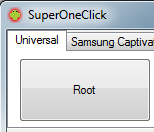
7. Root the phone with 'Super One Click': In order for apps to eventually be placed on the MicroSD card, we need to have 'SuperUser' permissions for the Link2SD app. In order to gain this level of access we 'Root' the phone. Rooting the phone also allows you to uninstall any 'System' installed apps. I quickly learned one of the apps I downloaded installed a ton of junk as system apps, and I couldn't uninstall them...until I rooted the phone that is. The easiest way to do this is with an app named 'Super One Click' which runs on Windows (not the phone). Download the application from here: Download Super One Click Install the application and open it up in Windows. All you have to do is press the 'Root' button (displayed below). When asked if you want to install the app, I stated 'Yes' which allows SuperUser to work on the device. Once complete the device will be rooted. For a full list of phones which Super One Click works with, check out the following link: Compatibility List for Super Once Click


8. Reboot the phone: If the Super One Click does not prompt for a reboot after disconnecting the USB cable, then go ahead and disconnect the USB cable after the rooting process is complete, and power off and back on the phone.

9. Link the apps to the SD card using 'Link2SD': Go to the Market, and search and download 'Link2SD'. This application will allow you to manually select installed apps and move them over to the SD card. This process does not happen automatically, so make sure to move apps over to the SD card after installation. Sounds like it might be a pain, but it is really easy and takes only about 5 seconds to do. Once 'Link2SD' is installed, open it up. It is going to go through a series of steps to gain 'SuperUser' access and may ask you to reboot the phone after creating some boot scripts to be used. Follow all on-screen instructions including reboot if required. These steps are only 1 time and not required after completed successfully. I think the 1st time I tried Link2SD it didn't work so I rebooted the phone and tried again and it worked, so keep this in mind. After Link2SD finishes it configuration (including reboot), you are done! Open up the Link2SD app and scroll to any app you want to move over to the SD card and select it. Scroll down to select 'Create Link', and the press 'OK'. You will see a message about Link2SD getting 'SuperUser' access and then your app will be moved to the SD card! You can also use Link2SD to uninstall those pesky spam installed system apps if this happened to you. An app is installed on the system if you see its path start with /system/app/.... Don’t uninstall important apps, but it is useful to uninstall something that was never originally wanted.

That's it! If it didn't work, you probably want to go back through step by step and make sure everything worked properly. The Link2SD app is very picky about those partitions so make sure to get them right. If it is not working it might be because it does not recognize the type of partition you created. FAT32 is the safest bet and the only working one I found on the MB502 Charm. If you need more help, I recommend seeking out one of the Android User Forms where you can ask questions and get further help. ...or just fork out the money and buy a newer phone. :P